Core Primitives
This chapter describes the fundamental building blocks of VASTreaming libraries.
Note
VASTreaming state machine objects are not reusable. Once an object reaches a terminal state (e.g., Closed or Error), it must be disposed. Create a new instance if you need to continue using the functionality.
MediaType
MediaType describes a single media stream, such as video, audio, or subtitles. It includes complete information about the stream:
- Video: width, height, frame rate, pixel format, codec-specific data (SPS/PPS)
- Audio: sample rate, channel count, sample format
- All streams: codec type, bitrate, timescale
MediaType is used throughout VASTreaming and is typically received in the NewStream event handler.
The term media descriptor refers to a collection of MediaType objects describing all streams of a particular source, sink, or publishing point.
IMediaSource
IMediaSource is a standard interface, implemented in streaming library by numerous source objects, for example (the list is not exhaustive):
IMediaSource exposes the following properties and methods (the list is not exhaustive):
And the following events:
See Reference section for detailed explanation of each property, method and event.
Classes implementing IMediaSource are highly asynchronous and event-driven. Calls to Open(), Start(), and Stop() do not change the object state immediately. Instead, you must rely on event handlers to track state transitions.
An important feature of IMediaSource implementations is that a single source can be shared among multiple sinks. For example, one camera source can simultaneously feed both a file writer and a streaming publisher.
IMediaSource is a finite-state machine, see the below diagrams for state transitions. Paused state is optional and can be in interactive sources only, such as files.
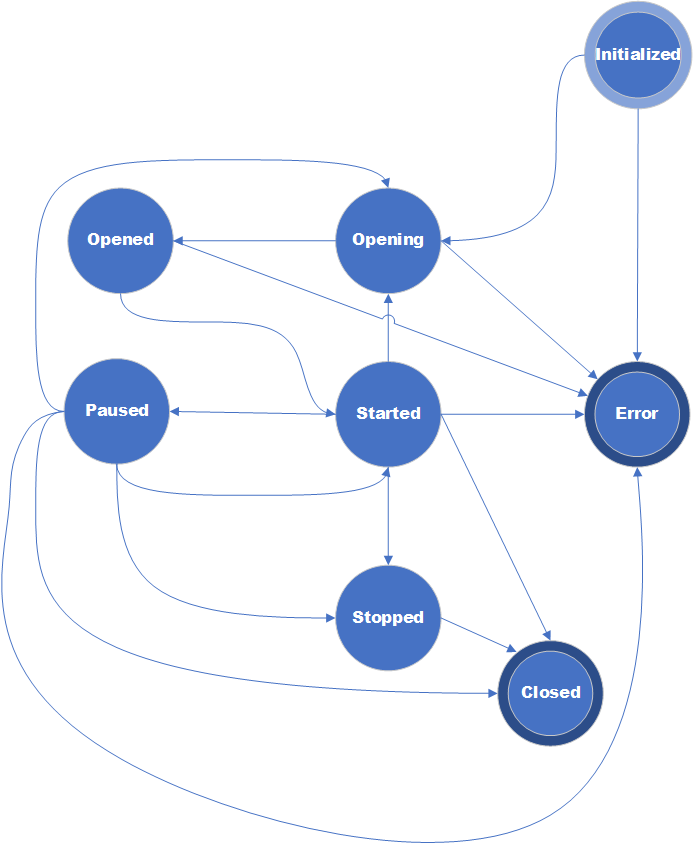
Figure 1: State transitions diagram for interactive IMediaSource
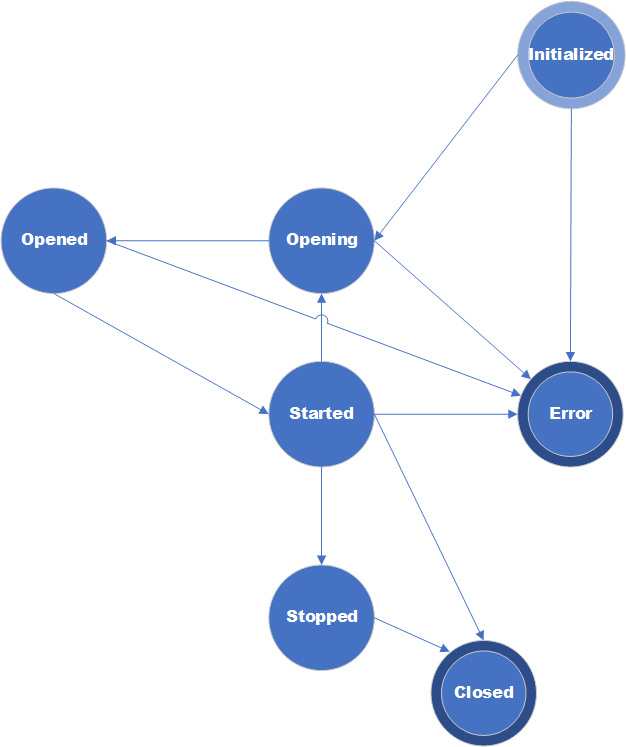
Figure 2: State transitions diagram for a live IMediaSource
Initialized - a state that object gets initially upon its creation.
To launch an object, call the Open() method. This transitions the object to the Opening state and initiates the connection to a server, file opening, or other logic required to obtain the media descriptor.
While opening a source, as soon as media streams are completely detected, event NewStream is invoked. If a source contains N streams, then NewStream event is invoked N times.
When opening procedure finishes, an object gets the state Opened. At this moment, we know descriptions of all media streams, so we have MediaType objects for each stream.
If opening fails, an object gets the state Error.
After reaching the Opened state, you can start the object by calling Start(). Calling Start() while the object is in Initialized or Opening state throws an exception.
Upon successful finishing of method Start(), an object gets the state Started and starts pushing media samples and invoking NewSample event.
If any critical error occurs during or after starting, an object state turns to Error.
The state Started is the main state of any object, in this state it remains most of the time.
For interactive sources, the Paused state is also available. An object enters this state when Pause() is called. In this state, the object stops receiving and pushing media samples but remains connected to the server or keeps the file open. To resume, call Start(), which transitions the object back to Started.
When an object is not needed, it can be stopped by calling method Stop(). Upon successful stopping, an object state turns to Stopped or Closed.
State Stopped is not intended for all objects, sometimes an object can be directly turned into state Closed.
There are several more specialized interfaces inherited from IMediaSource.
                                   ┌────────────────┐
                                   │  IMediaSource  │
                                   └───────┬────────┘
                                           │
       ┌─────────────────────┬─────────────┴───────────┬─────────────────────┐
       │                     │                         │                     │
       ▼                     ▼                         ▼                     ▼
┌──────────────┐ ┌───────────────────────┐ ┌────────────────────┐ ┌────────────────────┐
│INetworkSource│ │IInteractiveMediaSource│ │IAudioCaptureSource2│ │IVideoCaptureSource2│
└──────────────┘ └───────────────────────┘ └────────────────────┘ └────────────────────┘
Figure 3: IMediaSource inheritance diagram
IInteractiveMediaSource - an interactive media source with certain duration, that allows pausing and seeking.
IAudioCaptureSource2 - an audio capture source with additional parameters for capturing audio.
IVideoCaptureSource2 - a video capture source with additional parameters for capturing video.
INetworkSource - a network source with network related additional parameters e.g., remote end point, socket error etc.
Sample IMediaSource usage:
VAST.Media.IMediaSource mediaSource = VAST.Media.SourceFactory.Create("source_uri");

mediaSource.StateChanged += (object sender, VAST.Media.MediaState e) =>
{
    switch (e)
    {
        case VAST.Media.MediaState.Opened:
            // source successfully opened, start it
            mediaSource.Start();
            break;
        case VAST.Media.MediaState.Started:
            // source has been started, samples will come soon
            break;
        case VAST.Media.MediaState.Closed:
           // source has been disconnected and closed
             break;
        case VAST.Media.MediaState.Error:
            // critical error occurred
             break;
    }
};

mediaSource.NewStream += (object sender, VAST.Media.NewStreamEventArgs e) =>
{
    // source stream has been detected
};

mediaSource.NewSample += (object sender, VAST.Media.NewSampleEventArgs e) =>
{
    // new sample arrived
};

mediaSource.Error += (object sender, VAST.Media.ErrorEventArgs e) =>
{
     if (e.IsCritical)
    {
        // critical error occurred, show it to a user
    }
};

// start opening
mediaSource.Open();
Notes:
- Source objects can be instantiated by calling the desired class constructor or by using the static method Create, which accepts a URI as a parameter.
- The stream index in the NewStream event matches the StreamIndex property of VersatileBuffer in NewSampleEventArgs.
- The Error event can be invoked even while the object remains running. In such cases, IsCritical is false. This typically occurs when the server disconnects unexpectedly and the source object attempts automatic reconnection.
IMediaSink
IMediaSink is a standard interface that is implemented in the streaming library by numerous sink objects, for example (the list is not exhaustive):
IMediaSink exposes the following properties and methods (the list is not exhaustive):
And the following events:
See Reference section for detailed explanation of each property, method and event.
IMediaSink is highly asynchronous and event-driven. Calls to Open(), Start, and Stop() do not change the object state immediately. Instead, you must rely on event handlers to track state transitions.
IMediaSink is a finite-state machine with the same state transitions as IMediaSource (see the state transitions diagram for a live IMediaSource above).
The interactive interface is not supported for sinks, so the interactive IMediaSource state diagram does not apply to IMediaSink.
Sample IMediaSink usage:
VAST.Media.IMediaSink sink = VAST.Media.SinkFactory.Create("sink-uri");
// add video media type
sink.AddStream(videoStreamIndex, videoMediaType);
// add audio media type
sink.AddStream(audioStreamIndex, audioMediaType);

sink.StateChanged += (object sender, Media.MediaState e) =>
{
    lock (this)
    {
        switch (e)
        {
            case VAST.Media.MediaState.Opened:
                // sink successfully opened, start it
                ((VAST.Media.IMediaSink)sender).Start();
                Task.Run(() =>
                {
                    // run endless loop to push media data to sink
                });
                break;
            case VAST.Media.MediaState.Started:
                // sink has been started
                break;
            case VAST.Media.MediaState.Closed:
                // sink has been disconnected
                break;
        }
    }
};

sink.Error += (object sender, VAST.Media.ErrorEventArgs e) =>
{
    if (e.IsCritical)
    {
        // critical error occurred, show it to a user
    }
};

// start opening
sink.Open();
Notes:
- Sink objects can be instantiated by calling the desired class constructor or by using the static method Create, which accepts a URI as a parameter.
- The Error event can be invoked even while the object remains running. In such cases, IsCritical is false. This typically occurs when the server disconnects unexpectedly and the sink object attempts automatic reconnection.
MediaSession
A user can handle IMediaSource and IMediaSink objects manually, but MediaSession helps to do it in the simplest and most optimal way.
MediaSession is an object allowing a client to automate simultaneous processing of several IMediaSinks and IMediaSources. Every MediaSession may have from 1 to N IMediaSources and from 1 to M IMediaSinks. Media data from all sources is re-directed to each IMediaSink, so each IMediaSink receives a frame copy from each IMediaSource, which allows re-directing media data from sources to several sinks.
MediaSession is a state machine without explicit states (a user cannot receive value of an object state). Although, in fact, we have 3 implicit states:
- Initialized (got upon the object creation),
- Started (the object gets it after calling method Start()),
- Stopped (the object gets it after calling method Stop()).
Sample MediaSession usage:
var source = VAST.Media.SourceFactory.Create("source-uri");
var sink = new VAST.File.ISO.IsoSink();
sink.Uri = "file-path";

var recordingSession = new VAST.Media.MediaSession();
recordingSession.AddSource(source);
recordingSession.AddSink(sink);
recordingSession.Error += (object sender, VAST.Media.ErrorEventArgs e) =>
{
    if (e.IsCritical)
    {
        // critical error occurred, show it to a user
    }
};

recordingSession.Start();
IDecoder
IDecoder is a standard interface implemented by various platform-dependent decoders. Decoders are designed to be stateless, providing a simple interface that can be used anywhere in your code.
Since all decoders are platform-specific, you should not instantiate decoder objects directly. Instead, use DecoderFactory, which creates an optimal decoder for the current platform. You can specify additional parameters in DecoderParameters, such as media framework and hardware acceleration preferences.
DecoderParameters allows you to specify which media framework to use for decoding. By default, VASTreaming uses the platform's built-in media framework, but you can select an alternative such as FFmpeg. If you choose MediaFramework.Unknown, the library will try all available frameworks on the platform until one succeeds.
Sample IDecoder usage:
// decoder creation
VAST.Media.IDecoder decoder = VAST.Media.DecoderFactory.Create(encodedMediaType, decodedMediaType);

...

// frame decoding procedure
decoder.Write(encodedSample);

while (true)
{
    VAST.Common.VersatileBuffer decodedSample = decoder.Read();
    if (decodedSample == null)
    {
        break;
    }

    // process decoded sample if necessary

    decodedSample.Release();
}
IEncoder
IEncoder is a standard interface implemented by various platform-dependent encoders. Like IDecoder, encoders are designed to be stateless for ease of use.
Since all encoders are platform-specific, you should not instantiate encoder objects directly. Instead, use EncoderFactory, which creates an optimal encoder for the current platform. You can specify additional parameters in EncoderParameters, such as media framework and hardware acceleration preferences.
EncoderParameters allows you to specify which media framework to use for encoding. By default, VASTreaming uses the platform's built-in media framework, but you can select an alternative such as FFmpeg. If you choose MediaFramework.Unknown, the library will try all available frameworks on the platform until one succeeds.
Sample IEncoder usage:
// encoder creation
VAST.Media.IEncoder encoder = VAST.Media.EncoderFactory.Create(
    uncompressedMediaType, encodedMediaType);

...

// encoding procedure
encoder.Write(uncompressedSample);

while (true)
{
    VAST.Common.VersatileBuffer encodedSample = encoder.Read();
    if (encodedSample == null)
    {
        break;
    }

    // process encoded sample if necessary

    encodedSample.Release();
}
PublishingPoint
A publishing point is a virtual entity on a streaming server that responds to client requests with media content. The term was introduced by Microsoft to map client requests to physical content paths on the server. A streaming server can have multiple publishing points, each bound to exactly one source. The source defines the content delivered to clients via different protocols.
PublishingPoint object implements publishing point in VASTreaming library. This object can work only with multi-protocol server; there is no implementation for single-protocol servers.
Every publishing point is characterized by unique publishing path, which is used for its identification and creation of its URI in order to ensure client access to this publishing point. Moreover, every publishing point has its unique id (type System.Guid), which equals to id of a source object. So, a publishing point can be obtained either by its id or by publishing path. User may use both methods.
PublishingPoint object is fully controlled by StreamingServer object. It supports only one source and multiple sinks of different protocols. Meanwhile, VASTreaming library provides sources that may be aggregation of other sources, e.g., AggregatedNetworkSource, MixingSource, etc. See Reference section for more details.
PublishingPoint controls media data flow between sources and sinks automatically, in the similar way MediaSession does.
PublishingPoint object is rarely used directly. Usually, user code needs it to add manual sinks.
A user can tweak publishing point creation by providing optional PublishingPointParameters object with various settings. See reference section for more details.
StreamingServer
StreamingServer object implements a multi-protocol server.
StreamingServer is also a state machine without explicit states (a user cannot receive value of an object state). Although, in fact, we have 3 implicit states:
- Initialized (got upon the object creation),
- Started (the object gets it after calling method Start()),
- Stopped (the object gets it after calling method Stop()).
Before starting, StreamingServer should be initialized by setting parameters of protocol specific servers, which will run as a part of multi-protocol server (the list is not exhaustive):
- EnableHttp
- HttpServerParameters
- EnableRtmp
- RtmpServerParameters
- EnableRtsp
- RtspServerParameters
- EnableHls
- HlsServerParameters
HTTP server is common for many HTTP-based protocols. Each HTTP-based server specifies a path to distinguish them from each other.
During runtime, StreamingServer can be controlled by user code via utilizing of the following methods (the list is not exhaustive):
Multi-protocol server creates a publishing point automatically once it gets an incoming connection when a publisher connects a server. But a user may need a publishing point which pulls media data from a local file or from an external server. In this case, a user can create this publishing point manually by calling CreatePublishingPoint method.
All server logic is also controlled with events which are handled by user code. The events are as follows (the list is not exhaustive):
Authorize. This event is invoked when a remote peer establishes a new connection. When it is invoked, a server already knows whether it is a publisher or a client connection, protocol by which a remote peer has been connected, inbound URI, etc. This information is passed to a user in the event argument.
User code should recognize whether to permit a connection or deny it. What algorithm is used for authentication/authorization is up to a user. It can be done by adding any parameters to URI, via an additional header, etc.
If a user authorizes a certain connection, and if it has come from a publisher, then a user can set additional parameters for the publishing point creation in AdditionalParameters property.
PublisherConnected. This event is invoked when a connection with publisher has been established, and publishing point has been created. The created PublishingPoint object is passed as a parameter of this event.
User can utilize this event handler to add sinks to a publishing point, e.g., forward to an external server or record to a file.
Every publisher gets a unique connection id (type System.Guid) which is equal to a publishing point id. This id can be used later to obtain a PublishingPoint object.
ClientConnected. The event is invoked when a client connects to a server, and all client network settings are being passed in event parameter. Every client gets a unique connection id which can be used later to get information about the client.
Disconnected. The event is invoked when a remote peer (publisher or client) disconnects. User can recognize what peer exactly has been disconnected by comparing connection id with the saved data. If it is a publisher who disconnects, then it will be publisher connection id. If it is a client, it will be a client connection id.
Error. The event is invoked when an unrecoverable error occurs while a server is being connected by a publisher or a client. It provides detailed description of the error. If error occurred in a publisher connection, then it means that the corresponding publishing point will be deleted shortly.
PublishingPointRequested. Streaming server provides a possibility to create publishing point upon a client demand. Once a client connects to a server and a server cannot find a requested publishing path in the list of active publishing points, then a server invokes this event so that the user can create a publishing point in event handler. This logic is optional. If user finds unnecessary to support on-demand publishing point creation, a client just receives a reply with an error from a server. If user handles this event, then a client receives a normal response from a server after user code creates new publishing point on the fly.
StreamingServer object can also be controlled via JSON API. The API functionality does not cover all functions available to user code, but it is constantly enhancing.
When a streaming server creates a new publishing point, it automatically adds several sinks. These automatically created sinks are defined on the base of active single protocol servers e.g., if streaming server is configured as an RTMP and HLS server, then while creating every publishing point, sinks are being created to access the publishing point via RTMP and HLS protocols. However, user can override the default server logic and explicitly set allowed protocols in AdditionalParameters property in Authorize event and then a server will create sinks only for the specified protocols.
While creating a publishing point, it gets unique publishing path as it has been mentioned above. This publishing path is used to create unique URI to provide a client with publishing point access.
Streaming server supports two streaming types - live and VOD. Live streaming refers to any media delivered and played back simultaneously and endlessly. Whereas VOD is used to access previously created content, it is usually stored as a file. One more fundamental difference between these two is that VOD allows pausing and seeking content at any point of a recorded video. Accordingly, streaming server gives a possibility to created VOD publishing point, but access to such interactive contents is possible only via a limited number of protocols - in fact, they are HLS and MPEG-DASH.
Streaming server is optimized to latency minimization in those protocols where applicable.
VersatileBuffer & Allocators
Streaming applications use memory buffers of significant size. For example, one uncompressed Full HD frame requires approximately 8 MB. Creating buffers of this size consumes substantial CPU resources.
Additionally, frequent allocation and deallocation of large buffers can lead to heap fragmentation. Despite .NET's built-in heap optimization, some fragmentation risk remains.
To address these issues, VASTreaming pre-allocates buffers during library initialization at application startup. These buffers remain in memory for the application's lifetime, avoiding repeated allocation overhead.
VASTreaming implements an allocator mechanism that provides VersatileBuffer objects on request. VersatileBuffer is an abstraction layer over platform-specific internal implementations with different data storage methods.
You do not have direct access to the underlying data storage in VersatileBuffer. Instead, use methods like Append, Insert, and CopyTo to copy data into and out of the buffer.
VersatileBuffer implements reference counting on top of .NET's standard object reference mechanism. This concept may be unfamiliar to developers without C++ experience, but simply follow these practices when using VersatileBuffer:
- To retain a VersatileBuffer received from external code (such as an event handler), call AddRef() to increment the reference count.
- When you obtain a VersatileBuffer by calling LockBuffer or Clone, the reference count is already incremented by the called function. Do not call AddRef() in this case.
- When you are finished with a buffer, call Release() to decrement the reference count.
VASTreaming provides the MediaGlobal class, which contains methods and properties for accessing allocators and buffers. At application startup, initialize MediaGlobal based on the expected load. You can then use LockBuffer to obtain VersatileBuffer instances.
The following code demonstrates sample usage of VersatileBuffer received from an external code. Pay attention to AddRef() called when you store a sample and Release() called when sample is not needed anymore.
private Queue<VAST.Common.VersatileBuffer> inputQueue = new Queue<VAST.Common.VersatileBuffer>();

private void MediaSource_NewSample(object sender, VAST.Media.NewSampleEventArgs e)
{
    lock (this.inputQueue)
    {
        // add sample reference
        e.Sample.AddRef();
        this.inputQueue.Enqueue(e.Sample);
    }
}

private void processingRoutine()
{
    while (true)
    {
        VAST.Common.VersatileBuffer inputSample = null;

        lock (this.inputQueue)
        {
            if (this.inputQueue.Count > 0)
            {
                inputSample = this.inputQueue.Dequeue();
            }
        }

        if (inputSample != null)
        {
            // process sample data
            // release sample when it's not needed anymore
            inputSample.Release();
        }
    }
}
The following code demonstrates sample usage of VersatileBuffer received from an allocator. Pay attention that AddRef() must not be called in this case, but Release() still must be called when sample is not needed anymore.
VAST.Common.VersatileBuffer sample = VAST.Media.MediaGlobal.LockBuffer(1024 * 1024);

// perform any necessary actions with allocated buffer

// release sample when it's not needed anymore
sample.Release();
Writing Data to VersatileBuffer
VersatileBuffer provides several ways to write data into the buffer:
VAST.Common.VersatileBuffer buffer = VAST.Media.MediaGlobal.LockBuffer(imageSize);

// Append from a byte array
byte[] data = new byte[] { 0x00, 0x00, 0x00, 0x01 };
buffer.Append(data);

// Append from a byte array with offset and size
byte[] largeArray = new byte[4096];
buffer.Append(largeArray, 0, 1024);

// Append from an unmanaged pointer (common for native interop, e.g. image frames)
IntPtr nativePtr = bitmap.GetPixels();
int size = bitmap.RowBytes * bitmap.Height;
buffer.Append(nativePtr, size);

// Append from another VersatileBuffer
buffer.Append(otherBuffer, 0, otherBuffer.ActualSize);

// Append from a Stream
buffer.Append(fileStream, (int)fileStream.Length);

// Fill a range with a specific value (e.g. zero-fill silence)
buffer.Fill(0, bufferSize, 0);

// Set individual bytes using the indexer
buffer[0] = 0xFF;
buffer[1] = 0xD8;

// Set buffer metadata
buffer.ActualSize = totalBytesWritten;
buffer.StreamIndex = videoStreamIndex;
buffer.Dts = decodingTimestamp;
buffer.Pts = presentationTimestamp;
buffer.KeyFrame = true;
buffer.CleanPoint = true;

// Release when done
buffer.Release();
Reading Data from VersatileBuffer
VersatileBuffer provides several ways to read data out of the buffer:
// Copy to a byte array
byte[] destination = new byte[buffer.ActualSize];
buffer.CopyTo(0, destination, 0, buffer.ActualSize);

// Copy a portion starting at an offset
byte[] header = new byte[4];
buffer.CopyTo(0, header, 0, 4);

// Copy to an unmanaged pointer
IntPtr nativeBuffer = Marshal.AllocHGlobal(buffer.ActualSize);
buffer.CopyTo(0, nativeBuffer, buffer.ActualSize);

// Copy to a Stream
using (var fileStream = File.Create("output.bin"))
{
    buffer.CopyTo(0, fileStream, buffer.ActualSize);
}

// Read individual bytes using the indexer
byte firstByte = buffer[0];
byte secondByte = buffer[1];

// Read buffer metadata
int streamIndex = buffer.StreamIndex;
long pts = buffer.Pts;
long dts = buffer.Dts;
bool isKeyFrame = buffer.KeyFrame;
int dataSize = buffer.ActualSize;

// Create a deep copy (independent data)
VAST.Common.VersatileBuffer copy = buffer.Clone(shallow: false);
// ... use the copy ...
copy.Release();

// Create a shallow copy (shared data, independent metadata)
VAST.Common.VersatileBuffer shallow = buffer.Clone(shallow: true);
// ... use the shallow copy ...
shallow.Release();
Log
The Log class provides logging across all VASTreaming libraries. Since most library objects are non-visual, logging is essential for debugging and investigating issues. Initialize the log correctly and provide log files to VASTreaming support when reporting problems.
Sample log initialization:
VAST.Common.Log.LogFileName = System.IO.Path.Combine(logFolderName, logFileName);
VAST.Common.Log.LogLevel = VAST.Common.Log.Level.Debug;
Use log level Debug when reporting issues or requesting help from VASTreaming support.
You can use any logging framework in your code. When using the VASTreaming log, a typical log statement looks like this:
VAST.Common.Log.ErrorFormat("Error occurred: {0}", e.ErrorDescription);